Archive
SharePoint 2010: Exaction SharePoint User Manager
I have developed two commercial SharePoint User Manager Products for Exaction:
- Exaction (AD) SharePoint User Manager
- Exaction (SQL) SharePoint User Manager
This product is also available in MOSS 2007.
Please click here to go to the Exaction site and view more details.
The Exaction SharePoint User Manager solutions provide a set of user friendly SharePoint web parts that allow the end-user the ability to easily manage SharePoint user accounts. The Exaction (SQL) SharePoint User Manager solution is designed to typically work in an FBA enabled site with ASP.NET Membership as the provider where the users are stored in an SQL database (please view this post to see how this can be setup) whereas the Exaction (AD) SharePoint User Manager solution is designed to typically work in a site that uses Windows Authentication.
Below are some of the key features it has to offer:
- Ability to view a complete list of users
- Ability to sort and filter User data
- Ability to add, edit and delete FBA Users
- Ability to Reset passwords, unlock, enable and disable accounts
- Configurable password policy settings
- Ability to retrieve forgotten password
- Configurable auto-generated email notifications
- Ability to send out bulk email notifications to all system active or inactive users
- Export user data to excel
- Configurable security
- Easy to use and intuitive user interface
- Quick installation and configuration
- Easily customisable UI
- Several built in skins
The solution contains the following three web parts:
- User Manager web part
- Manage My Account web part
- Forgot My Password web part
1 User Manager web part
The User Manager web part uses a Telerik RadGrid to display a list of Users. Apart from providing the ability to view a list of all users the web part also provides the ability to:
- Filter the data
- Sort the data by any column
- Paginate data and to specify page size
- Edit existing User accounts
- Add new users
- Delete a user account (Admin function)
- Unlock user accounts
- Activate and de-activate user accounts
- Export data to excel (Admin function)
- Notify All Active And Inactive Users (Admin function)
As it uses the Telerik RadGrid to display the data it comes with several built in Skins and is fully customisable (please refer to http://demos.telerik.com/aspnet-ajax/grid/examples/overview/defaultcs.aspx to see an overview of the features provided by the Telerik RadGrid)
The screen shot below shows the initial view seen by the end user when accessing the Web Part:

1.1 Adding a new User
The User Manager web part provides an easy and convenient way of adding new users to the system and adding them to SharePoint groups at the same time to grant them access to the Site.

When a user is successfully created a password is automatically generated and the details are emailed to the newly created user.
1.2 Deleting existing Users
Users can be easily deleted by clicking on the  icon on the Grid. Clicking on the cross prompts the end user to confirm that they would like to delete this record. Upon confirmation the account is deleted, please look at the screen shot below:

This feature i.e. Deleting a User can be enabled, disabled and you can specify the SharePoint Group that will have permissions to perform this action.
1.3 Activating and Deactivating User Accounts
Based on the status of the User account the Grid will display an action that will allow the end user to Activate or Deactivate an account. For example if the user account is active then it will display the ‘Deactivate’ action. Clicking on this action will de-activate the user account. On the other hand if the user account has already been deactivated then it will display the ‘Activate’ action. Clicking on this action will activate the User Account. Please note that attempting to deactiviate an account will first prompt the end user to confirm that they are sure they want to proceed with the action.

1.4 Editing existing user accounts
Clicking on the edit  icon opens up a modal dialog box that allows the end user to edit existing user account details.

The form also provides the means to change a user’s password and a means to modify the user’s SharePoint Group memberships.
1.5 Unlocking User Accounts
If a user’s account has been locked out due to repeated login failures then the  icon will appear on the Grid for that User Account. Clicking on the icon will unlock the user account.

1.6 Filtering Data
By default the User Manager Grid allows the end user to filter the data by First name, surname, username, email address and full name.

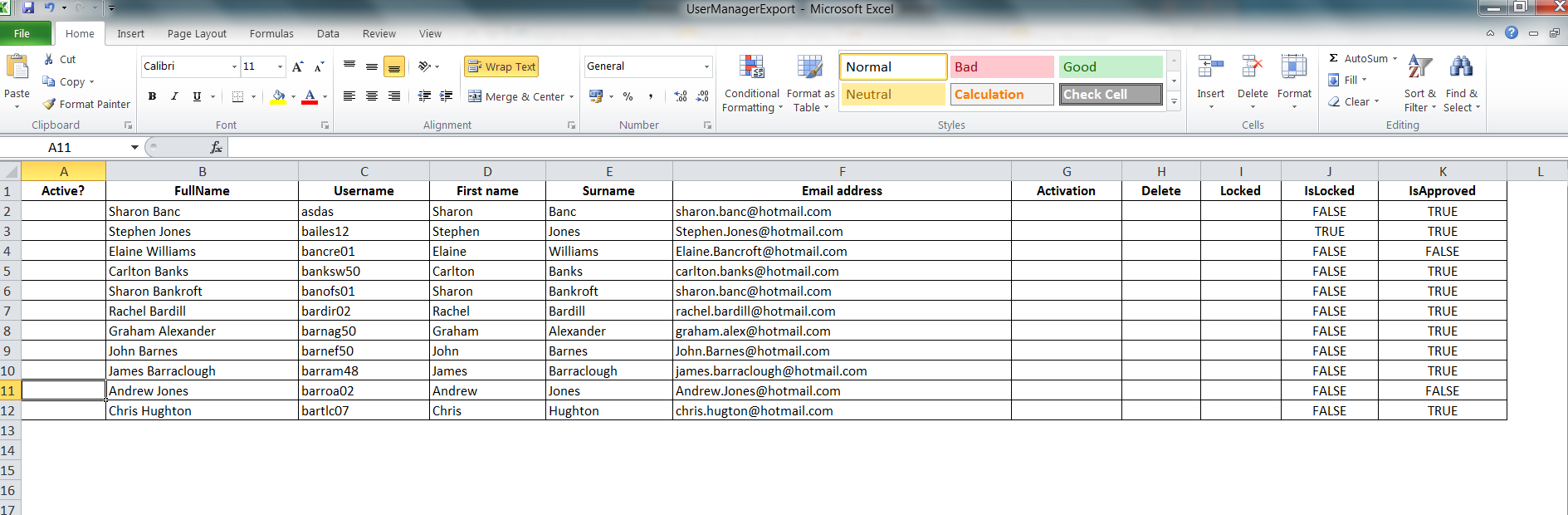
1.7 Export data to excel
Clicking on the export to excel button will export the data to an excel spreads heet. The data that will be exported will take into consideration the filters that have been applied to the view i.e. only data that matches the filtering criteria will be exported.
1.8 Notify System Users
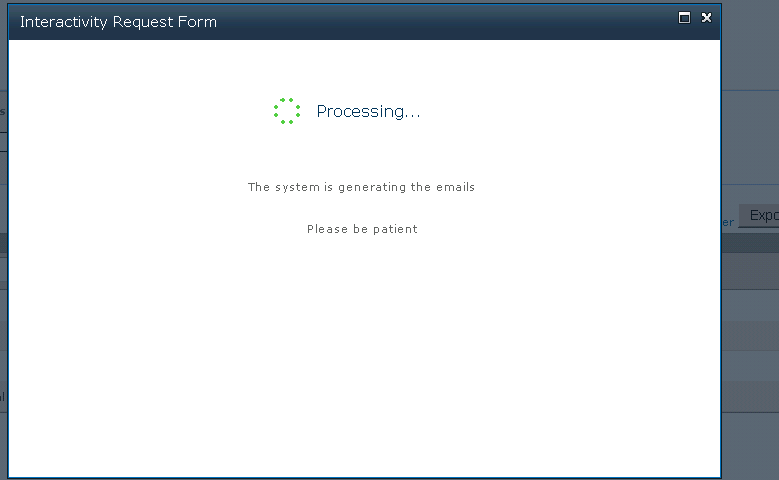
Clicking on the ‘Notify Users’ button allows you to send notifications to all system users.

While the notifications are being generated:
After the process is complete the screen shot below displays a confirmation that the notifications were sent successfully to x number of users:

2 Manage my account web part
The Manage Account Web Part allows the logged in user to manage their account details. Changing the email address, first name and surname also updates the SharePoint profile as well as updating the membership provider store.

The Web Part also allows the user the means to change their password.
3 Forgotten my password web part
This web part allows a user to retrieve their password by filling out the form below:

Once the end user provides the username and the email address for the account an email is sent out to the registered account’s email address confirming the password.
If you require more information on the product then please click here to go to the Exaction site and view more details.
 Jalil Sear's [MCPD SharePoint 2010] Weblog